
Wireless trackpad and keyboard for Mac
Your iPhone is now a Mac trackpad
Real trackpad gestures on your iPhone or iPad, streamed to your Mac over Wi‑Fi, or Bluetooth when there's no network to share. No cable, no account, no lag.
Free to download. PadLinker Pro is one purchase that covers every iPhone and iPad on your Apple ID.
Why people trust PadLinker
- Stays between your devicesEvery touch goes straight from your iPhone or iPad to your Mac, over Wi‑Fi or Bluetooth. Nothing goes through the internet.
- No accounts, no trackingPadLinker runs no servers, and the iOS app collects nothing. The Mac app sends an anonymous crash report only when something goes wrong, and you can turn that off.
- One purchase, no subscriptionPadLinker Pro is bought once and never expires.
- Family SharingShare PadLinker Pro with your family at no extra cost.
- One app for iPhone, iPad and MacOne PadLinker Pro purchase on your iPhone or iPad covers every iOS device on your Apple ID. The Mac app is free.
Everything a Mac trackpad can do
Free covers the everyday moves. PadLinker Pro adds the gestures you already know.
Feels like a Mac trackpad
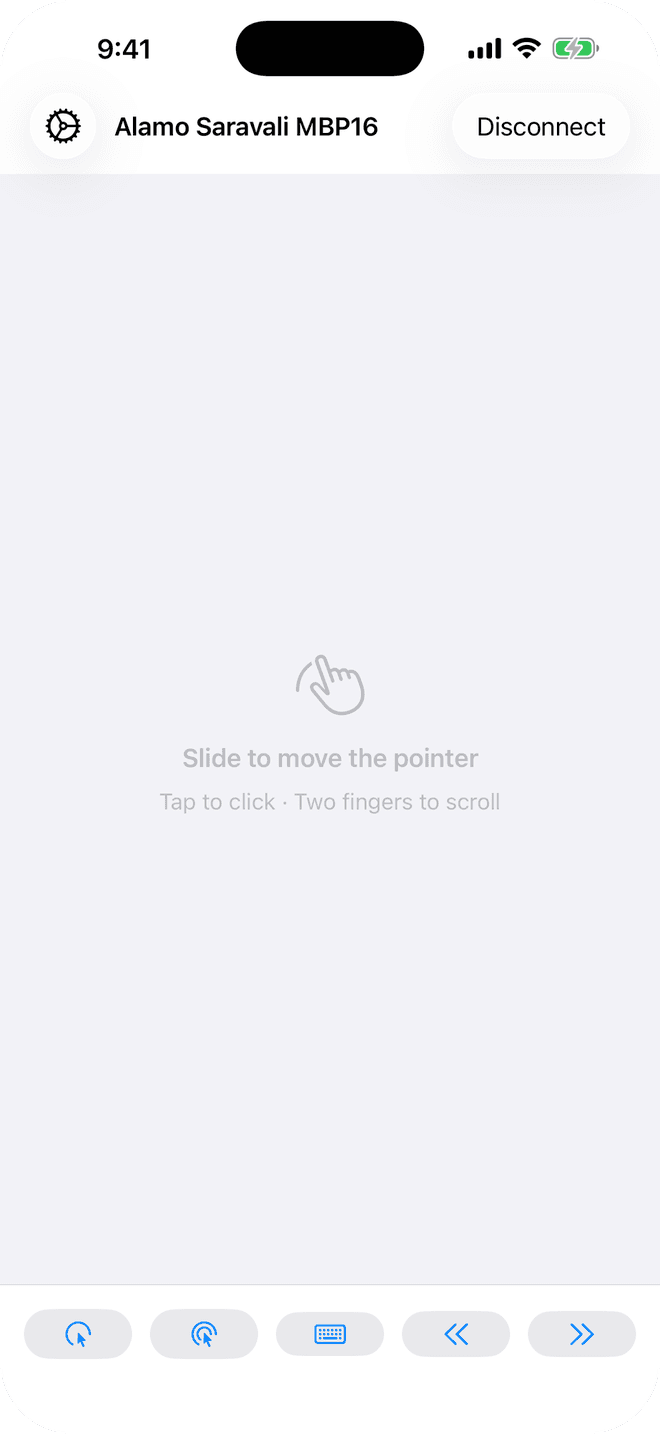
One finger moves the pointer, tap to click, double-tap and hold to drag — just like a MacBook's built-in trackpad.
Two-finger scroll
Scroll in any direction, at the speed you expect, with two fingers on the glass.
Finds your Mac on its own
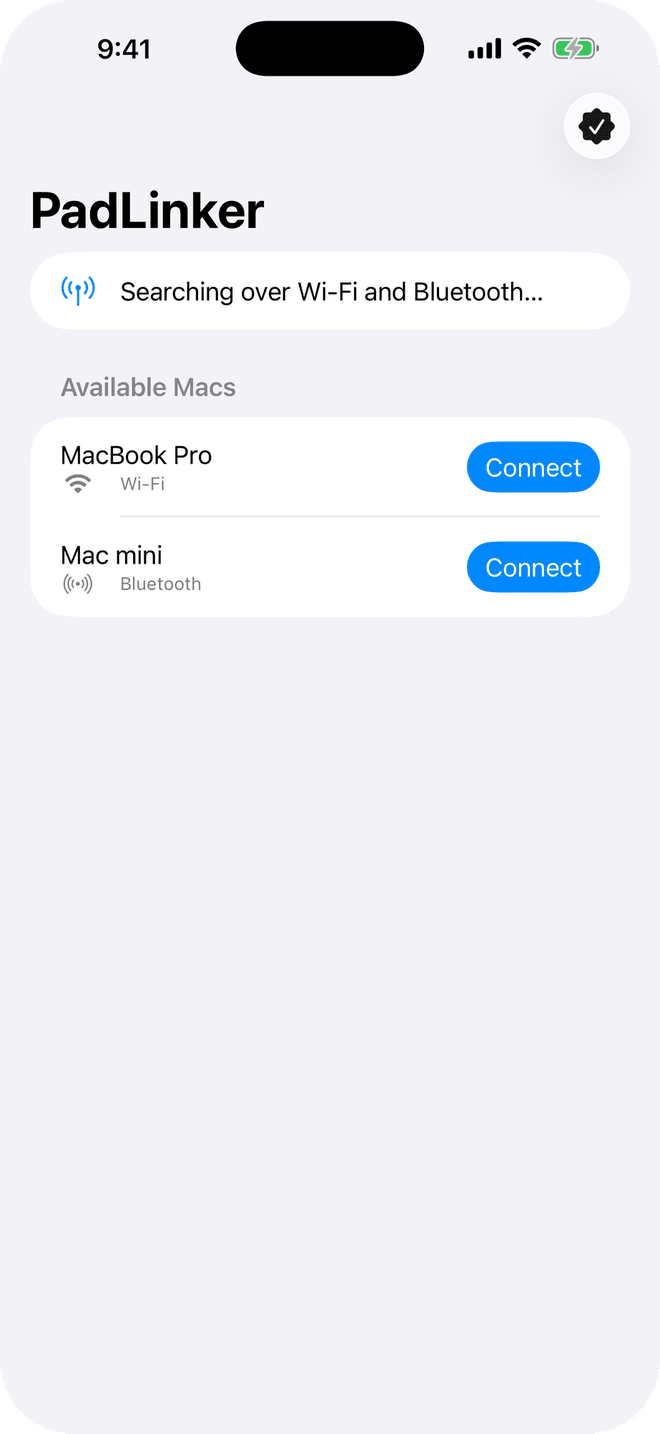
Open the app and your Mac appears. No account, no code to type, no cable.
Every display, one pointer
The pointer glides across every monitor connected to your Mac, just like the built-in trackpad.
Right click
Two-finger tap opens the context menu, right where you'd expect it.
Pinch to zoom
Pinch with two fingers to zoom in and out, just like a Mac trackpad.
Desktop switching
Swipe three fingers, or tap the desktop buttons, to move between Spaces.
Keyboard
Type on your Mac from your device, with Command, Option, Control, Shift and the special keys.
Pointer speed and swipe tuning
Set the pointer speed and swipe sensitivity to match your hands.
Set up once, in under a minute
One app to start. Add the free Mac app for the full trackpad experience.
Install PadLinker on your iPhone or iPad
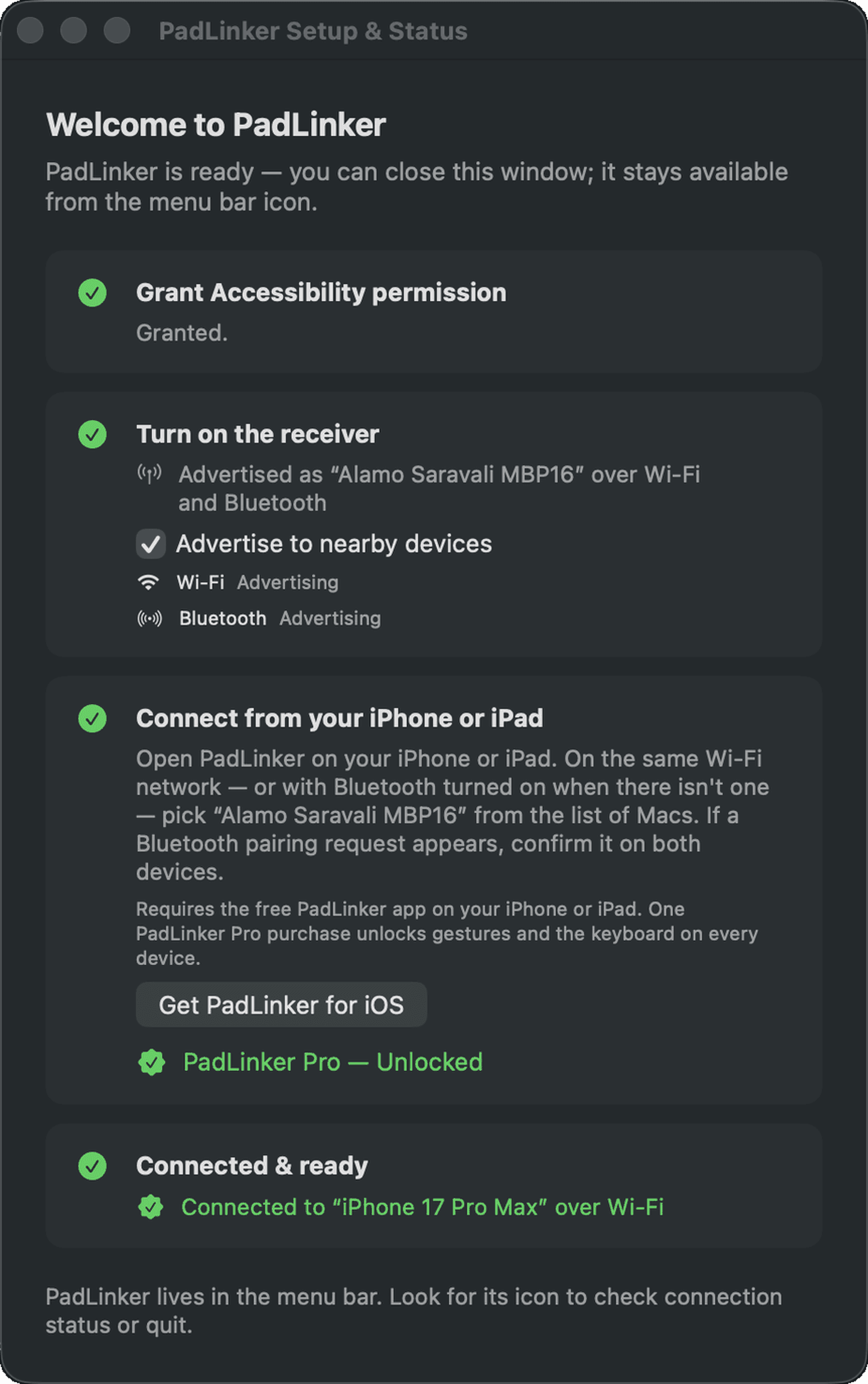
Get it from the App Store, then download the free Mac app from padlinker.com and allow Accessibility when it asks. Want to try it first? Practice mode drives a simulated desktop right on your iPhone or iPad, no Mac needed.
Open both nearby
On the same Wi‑Fi network, or with Bluetooth on when there isn't one, your iPhone or iPad finds your Mac automatically. No account, no code to type.
Grant Accessibility once
macOS asks for the standard Accessibility permission the first time; PadLinker walks you through it.
One purchase. Every iPhone and iPad.
Start free. Unlock PadLinker Pro once, and it's yours on every iPhone and iPad on your Apple ID.
PadLinker
The trackpad basics, free forever.
Free
- Pointer, tap to click and drag
- Two-finger scroll
- Finds your Mac automatically
- Works across every display
PadLinker Pro
Everything the trackpad can do.
$9.99Regular price $14.99
Introductory price for a limited time. One purchase covers every iPhone and iPad on your Apple ID.
One-time purchase
- Right click
- Pinch to zoom
- Desktop switching
- Keyboard
- Pointer speed
- Swipe tuning
Prices in US dollars; your App Store shows local pricing. The Mac app is free. PadLinker Pro is bought once on iPhone or iPad and is not a subscription.
Where it earns its place
The moments a real trackpad on your Mac matters most.
The Mac mini or Studio with no trackpad
Desktop Macs don't come with one. Your iPhone or iPad already has the multi-touch hardware it takes.
The MacBook plugged into the TV
Drive it from the couch with a real trackpad in your hand, instead of squinting at the lid across the room.
The laptop just out of reach
Keep drawing, reading or cooking, and control your Mac without leaning over to touch it.
The demo where you want to walk around
Present from anywhere in the room while your Mac keeps up, gesture for gesture.
The afternoon your mouse dies
No batteries, no dongle, no trip to the store — just the iPhone already in your pocket.
Frequently asked questions
Does it work with Windows or Linux?
No. PadLinker controls a Mac on macOS 14 Sonoma or later; Windows and Linux aren't supported.
Do I need the Mac app?
Yes, to control a Mac: the free Mac app is what turns your gestures into real pointer, scroll and keyboard events, and it is a notarized download from padlinker.com. You can try PadLinker before installing it, though — practice mode drives a simulated desktop on your iPhone or iPad, with every gesture, and the Gesture Trainer walks you through each one.
Does it use Bluetooth?
Yes. Bluetooth is the fallback when there's no Wi‑Fi to share — PadLinker prefers Wi‑Fi for the lowest latency and falls back automatically, with your Mac showing up once either way.
Does it need the internet or an account?
No. PadLinker works entirely between your own devices, with no account and no sign-in. Over Bluetooth, your devices may ask you to confirm a standard pairing once.
What data does PadLinker collect?
The iPhone and iPad app collects nothing: there are no servers and no accounts, so it has nothing of yours to collect. The Mac app sends an anonymous crash report to Sentry only when something goes wrong, such as a crash or a freeze. It holds a stack trace, the app and macOS versions, your Mac model and a trail of recent app events — never keystrokes, pointer movement, device or Wi‑Fi network names, or any identifier — and you can turn it off at any time with "Send crash reports" in the Mac app's menu bar. This website uses cookieless, aggregated Vercel Analytics to see which pages get read — nothing that identifies you.
What exactly does Pro unlock?
Right click, pinch to zoom, desktop switching between Spaces, the keyboard, and pointer speed and swipe tuning. Pointer movement, clicking, dragging, two-finger scroll and multi-display support stay free.
Is Pro a subscription?
No. PadLinker Pro is one purchase that never expires, covers every iPhone and iPad on your Apple ID, and supports Family Sharing.
How low is the latency?
PadLinker is built for it: every touch is streamed over Wi‑Fi (or Bluetooth) and turned straight into a real macOS pointer, scroll or key event, with nothing routed through the internet. Wi‑Fi gives the lowest latency; Bluetooth is the fallback when there's no network to share.
Can I use it with more than one Mac, or more than one display?
PadLinker connects to one Mac at a time per device, and you can switch which Mac from the discovery screen. Once connected, the pointer moves across every display attached to that Mac.
What do I need?
An iPhone or iPad on iOS 17 or iPadOS 17 or later, a Mac on macOS 14 Sonoma or later running the free PadLinker app, both on the same Wi‑Fi network or within Bluetooth range, and the Accessibility permission granted once on the Mac. Practice mode needs only the iPhone or iPad.
How do I get a refund?
Through Apple. PadLinker purchases go through the App Store, so refunds are requested from Apple — from your purchase history in Settings, or Apple's own Report a Problem page — not from PadLinker directly.
Why isn't the Mac app on the Mac App Store?
Apple's Mac App Store rules don't allow apps that move the pointer through the Accessibility permission for anything other than accessibility purposes — which is exactly what PadLinker needs to do. So the Mac app is a Developer ID-signed, notarized download instead; Apple still scans and notarizes every build, and it stays sandboxed. Download it from padlinker.com/download.
Ready to put your iPhone to work?
Free to download. PadLinker Pro is one purchase for every iPhone and iPad you own.